
When Mini can’t sign in for a reason only you can clear, like a rejected password or a locked account, it doesn’t report a bug in your app. It asks you on the run page, and the scenario shows Needs input. Fix the account, then answer with Send answer and the scenario runs again. See Mini is waiting on something.
Wrong or missing test account
Open the scenario, go to its Setup tab and check Test accounts. Then open the account in Builds & test data → Test accounts.- No account attached. Mini opens the app as a visitor. Click + Add test account and pick the right one. Turn on Use by default on the account most scenarios need, so new scenarios get it.
- The account doesn’t exist in your app. Register it in your app first, with the same email and password, unless the scenario is a sign-up flow.
- The password changed. Saved passwords show as unchanged until you type a new one. Type the current password and save.
- The wrong kind of user. A free account can’t reach a premium screen. Create one test account per kind of user, and say in its Note what makes it different.
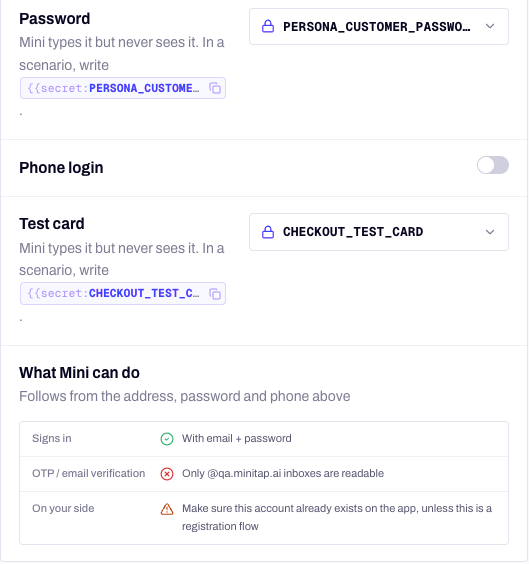
What Mini can do sums up which sign-ins this account allows.
Locked or rate-limited accounts
Repeated sign-ins can trip your backend’s protection, especially when several scenarios use the same account at once.- Unlock the account or reset its attempt counter in your backend, then answer Mini’s question.
- If your app allows one active session per account, turn on One run at a time on the test account. Other scenarios wait for it to free up instead of signing each other out.
- Give scenarios that run in parallel their own test accounts. It also makes runs shorter.
- Raise or turn off the sign-in rate limit for test accounts in your staging environment.
Two-factor codes
Secrets are covered in Secrets and files.
Email codes and verification links
Mini reads codes and follows verification links only on@qa.minitap.ai addresses. It can’t read Gmail, Outlook or your company mailboxes.
- The account uses another domain. Change its Email address to an
@qa.minitap.aiaddress, and create the account with that address in your backend if it needs a given state. - The address belongs to another workspace. The dashboard says Mini can’t read its emails. Pick a more specific name, like
acme-admin@qa.minitap.ai. - No code arrived. Open View emails on the test account, or the run report’s Emails tab, to see what reached the inbox. If nothing did, check that your staging environment sends email to that address.
Phone OTP
Mini never receives a real SMS. It types the phone number from the test account, then the Static OTP code you pinned for that number in staging.- Mini stops at the SMS screen. The account has Phone login on but no Static OTP code. Add it.
- The app rejects the code. Your backend doesn’t accept that code for that number yet. Whitelist the number and pin the code, see phone number sign-in.
- The app rejects the number. Enter it in international format, with the country code:
+33612345678.
Google sign-in fails
Attach one of the Google accounts Shared by Minitap to the scenario. Minitap maintains them, 2-Step Verification included, so there is nothing to create. If sign-in fails on Android only, the app’s signing certificate is the usual cause. Google checks it, and Mini signs the Android builds it makes with its own key:- Builds from your repository: copy the SHA-1 from Builds & test data → Builds → App signing.
- An uploaded
.aab: runminitest build signing-certificateto print the SHA-1 of your workspace’s key.
Captchas and bot protection
Mini handles a security check the way a person would:- On web, when a page asks you to “Verify you are human” with a checkbox, Mini ticks it. When the page checks your browser on its own, Mini waits for it to clear, for up to 3 minutes.
- On mobile, when the app or a web view shows a block page instead of its content, Mini waits about 30 seconds and tries once more.
Next steps
Test accounts and sign-in
Every kind of sign-in, and how to attach accounts to scenarios.
Test inboxes
How Mini reads email codes and magic links.
Troubleshooting runs
Mini’s questions, Not tested verdicts and false failures.