
Beta. Physical phones are in beta and enabled per workspace: ask for them from the device picker, as shown in Get physical phones.
Which file fits which device is detailed in Upload a build.
How a run picks its device
In Run tests, pick the tests and a build per platform, then click Choose devices. Each platform lists its devices in two groups:- Simulators on iOS (iPhone and iPad) and Emulators on Android (Android phone and Android tablet), each with the OS versions you can pick. A cloud device is selected by default.
- Real devices: the phones assigned to your workspace, each with its OS version and how many are free right now. Request another model asks the Minitap team for a model you don’t have yet.
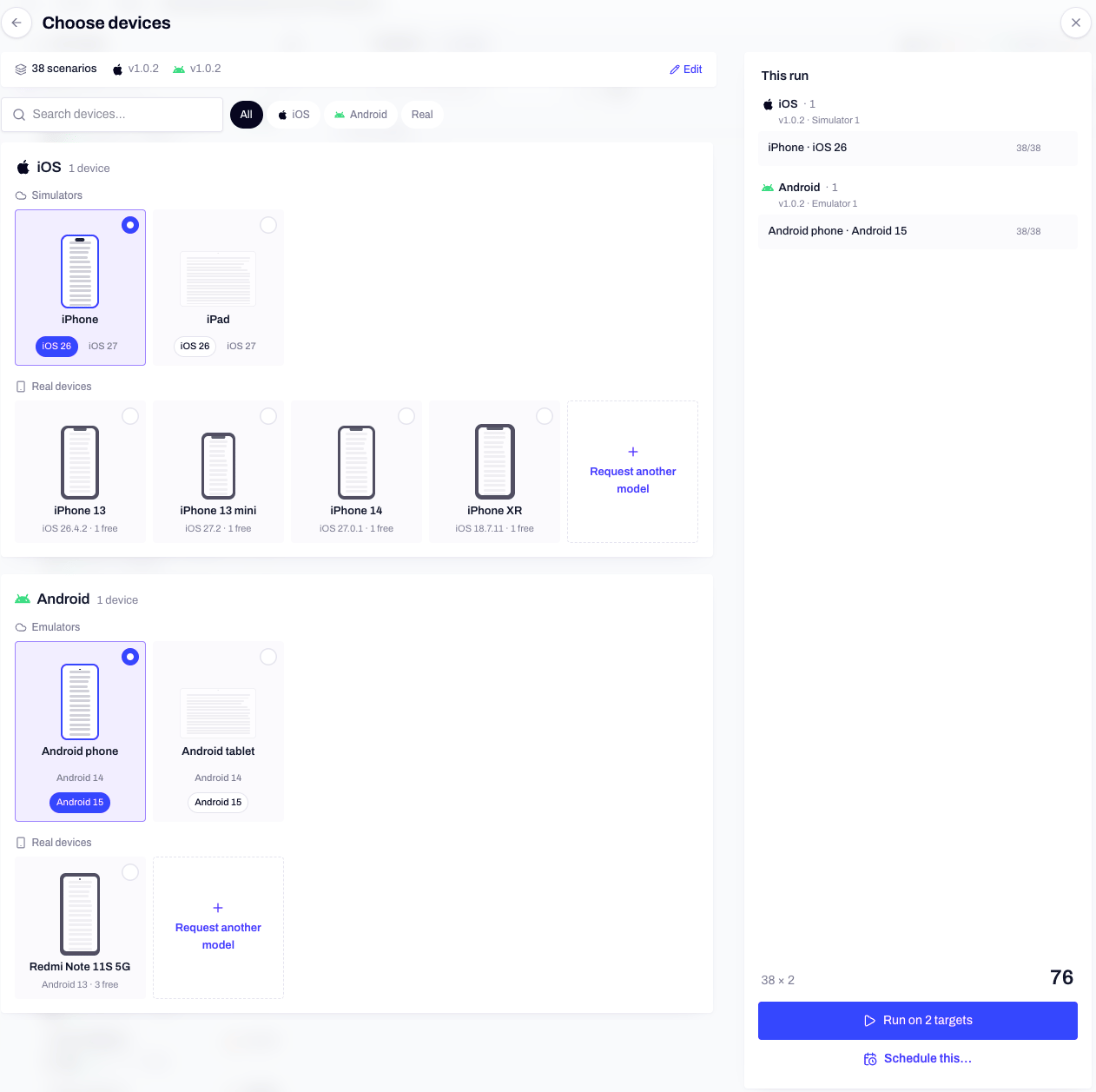
Choose devices: cloud simulators and emulators, or the real phones assigned to your workspace.
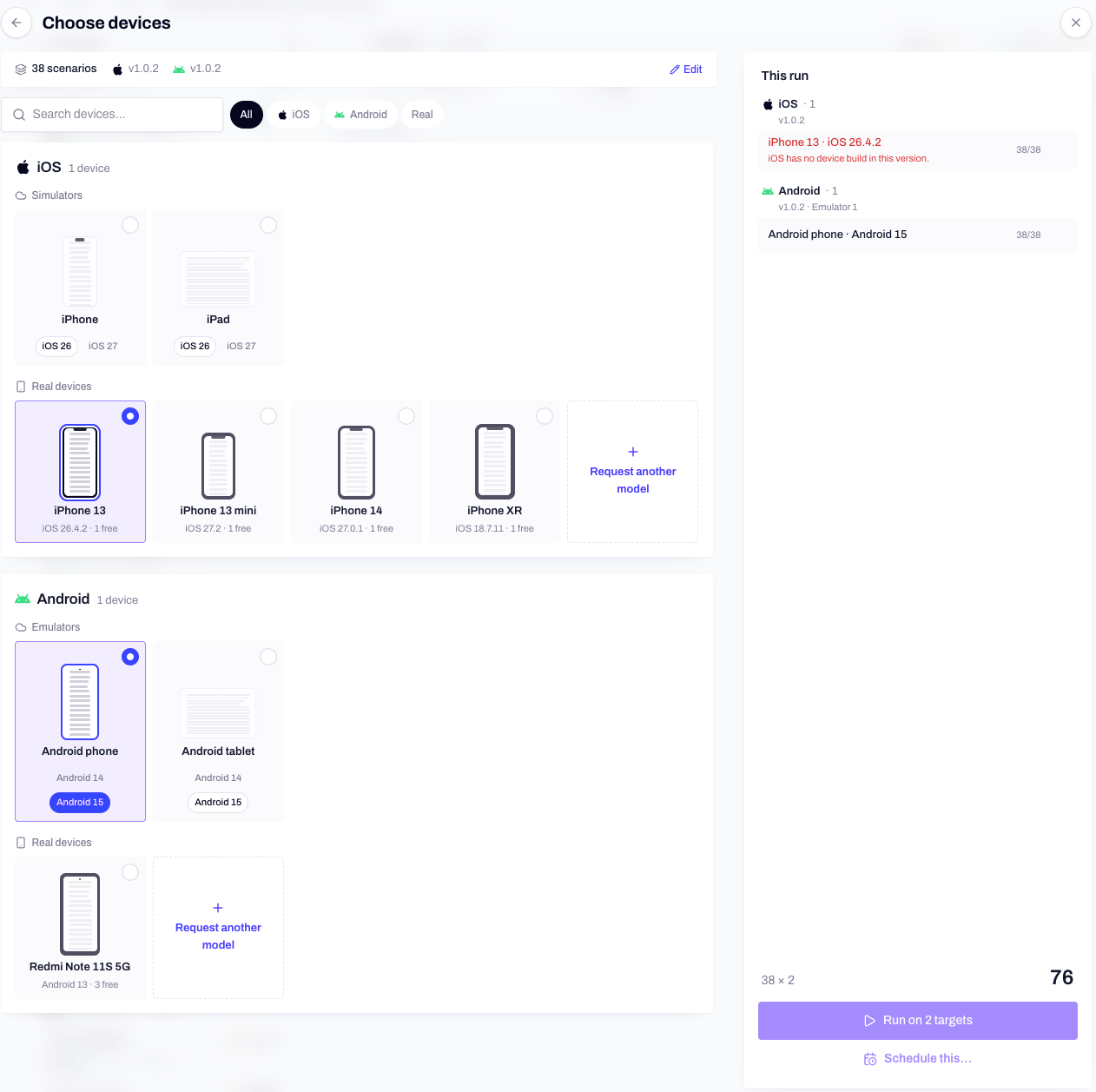
A physical iPhone picked with a simulator-only build.
--ios-physical or --android-physical to a run with its build:
Phones assigned to your workspace
Physical phones are real iPhones and Android phones from Minitap’s device farm, assigned to your workspace. Other workspaces don’t run on them. Each phone runs one scenario at a time, so the number of phones sets how many scenarios run in parallel on physical devices. The run report names the phone a run used, likeiPhone 13 mini · iOS 27.0, under the recording.
Get physical phones
1
Ask for access
In Run tests, open Run on and click Physical device (marked Request access while your workspace has none). The Request physical devices dialog asks for a model and an OS version (both optional), how many, and why you need them, for example Face ID flows, NFC or a specific carrier.
2
The Minitap team reviews it
Nothing is provisioned until the request is approved. Pending requests show in the picker under Requested, pending with the farm team.
3
Ask for more later
Once your workspace has phones, Request another model… in the same picker asks for another model or more units.
When you need a physical phone
- TestFlight builds. They only run on physical iPhones. See TestFlight and Ad Hoc.
- Device builds. A device
.ipa, signed for real iPhones, can’t install on the iOS simulator. An Android build with only 32-bit ARM code can’t run on emulators. - In-app purchases on Android. Cloud emulators run without Google Play, so they can’t show its purchase sheet: scenarios that buy run on your physical Android phones. Cloud iOS simulators buy with no setup. On physical iPhones, Mini buys with a Sandbox Apple Account, one per iPhone.
- Real hardware and real-world conditions, such as the flows you’d name in the request: Face ID, NFC, a carrier.
Known limits
- Logs on physical iPhones. Device logs aren’t captured on physical iPhones yet. Physical Android phones and cloud devices keep their logs.
- iOS builds from your repository are simulator builds, so they run on cloud simulators only. For a physical iPhone, use TestFlight or an Ad Hoc build.
- Simulator-only patches. Patch the camera for simulators and Mock Apple Family Controls change simulator builds only. On a physical iPhone, the camera and Screen Time frameworks are the real ones. See Build options.
- TestFlight device limit. Apple lets one account install TestFlight builds on a limited number of devices, and each iPhone of your workspace uses one. Simulators don’t count.
- In-app purchase scenarios are skipped on physical phones that aren’t set up for purchases, and the run dialog warns you before launch.
Next steps
Upload a build
The right file for each device, TestFlight links and Ad Hoc builds.
Builds from your repository
Let Mini compile your app from the commit each run needs.
Web apps
Browsers and screen sizes for web apps.
Start a run
From the dashboard, a pull request, Slack or the CLI.