
Where test accounts live
Test accounts belong to an app. Open the app and go to Builds & test data → Test accounts: the page lists Yours and the accounts Shared by Minitap, and Add account creates a new one.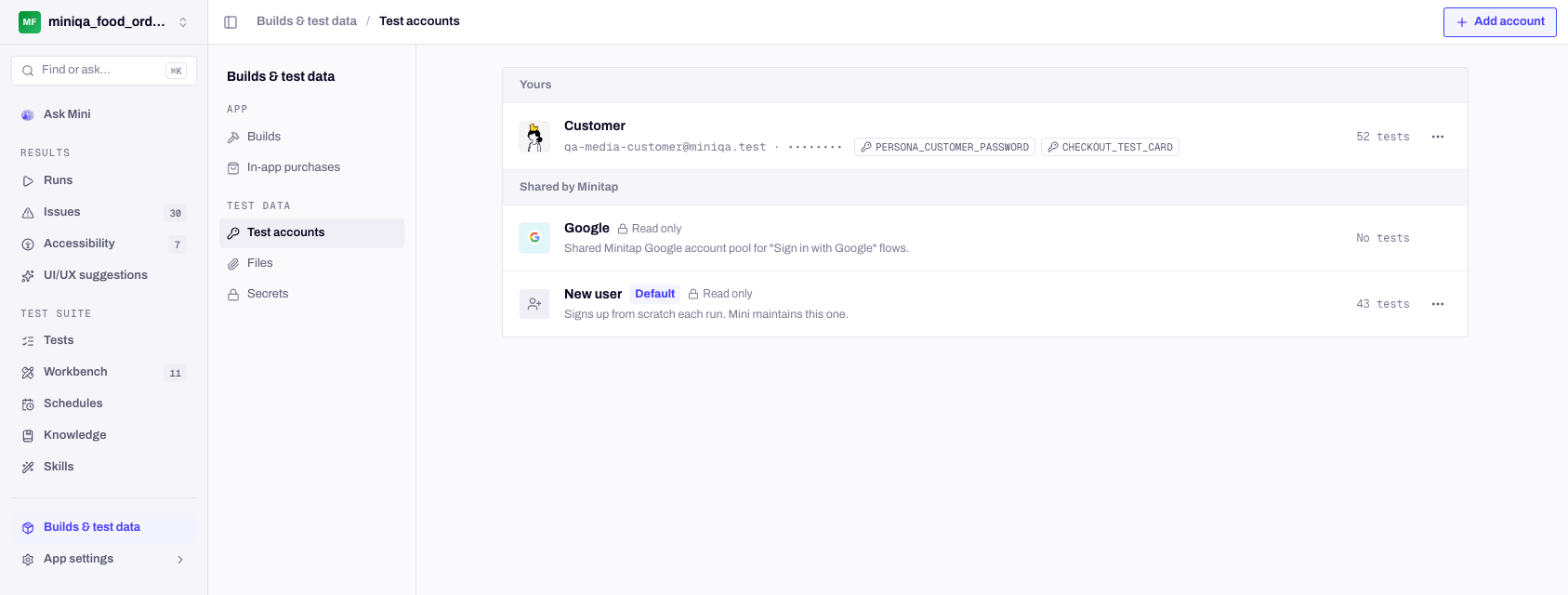
Your accounts first, then the ones Minitap shares.
Register the account in your app first, unless the scenario is a sign-up flow. As you fill the fields, What Mini can do sums up which sign-ins Mini can complete with this account, and what is still needed on your side.
One account per kind of user
Create one test account for every kind of user whose journeys differ: a free user, a subscriber, an admin, a driver. The note is what tells Mini which is which, so write what makes each one different (“Active premium subscription, 3 saved addresses”). Use dedicated test users. A failed run can leave an account in an odd state, like a half-finished checkout, and that is easier to live with on a test user than on a real one. For sign-up journeys, Shared by Minitap also lists New user: it signs up from scratch on each run, and Mini maintains it.Attach accounts to scenarios
Open a scenario, go to its Setup tab and click + Add test account under Test accounts. A scenario can carry several accounts, and Mini signs in with the right one when the journey needs it. A chat between a buyer and a seller, for example, gets both accounts, and each one runs on its own device: see Devices for multi-device scenarios. You can also create and attach accounts from your editor or CI with the CLI:My app has no sign-in
Pick My app has no sign-in when Mini asks for accounts during onboarding. Scenarios then run with no test account, and Mini opens the app as a visitor. In an app that does have accounts, a scenario you create without one, like a public landing page, runs the same way. If a journey without a test account still hits a sign-in wall, Mini creates a throwaway@qa.minitap.ai identity during the run, signs up and reads the confirmation code from its inbox.
Passwords and secrets
Passwords, static codes and test cards are stored encrypted. Once saved, the dashboard shows the field as unchanged until you type a new value or clear it. For values Mini should type but never see, use Builds & test data → Secrets. A test account’s Password, OTP or Test card can then point to a secret that holds the value. In a scenario’s description or criteria, refer to a secret as{{secret:NAME}}: Mini sees only the name, the device gets the value, and values typed on screen are blacked out in the screenshots Mini reads.
Google sign-in
You don’t need your own Google account for this. Minitap maintains Google accounts for you, and they appear under Shared by Minitap in Builds & test data → Test accounts and in every scenario’s account picker. Attach one to the scenario and Mini signs in with it on every run.Email codes
When your app sends a code or a magic link by email, give the test account an@qa.minitap.ai address and no password. Mini reads the email from that inbox during the run, so there is nothing to forward or paste. See Test inboxes for how these inboxes work.
Phone number sign-in
If your app signs users in by phone number, Mini needs a number it can type and a code it can type next. You put both on the test account, and you make them work in your own staging backend.1
Pick a test number
Any number you control the behavior of in staging. It never receives a real SMS, so it doesn’t have to be a number you own with a carrier.
2
Whitelist it in your staging backend
Make your OTP endpoint accept that number without sending anything, and accept one fixed code for it. Most teams already have this for their own manual QA.
3
Put both on the test account
In Builds & test data → Test accounts, open the account, turn on Phone login and fill Phone number in international format, with the country code (
+33612345678), and Static OTP code, the code your backend returns for this number.The generic case
The change has the same shape whatever your stack: when the request is for a whitelisted test number, skip the send and accept a known code.- Staging only. Gate the list behind an environment setting so a whitelisted number can never be used against production data.
- One code per number. Accept exactly one code for a test number. If verification accepts anything, your sign-in scenario stops testing sign-in.
If you’re on Twilio Verify
Twilio ships no test mode for Verify. Its test credentials cover phone numbers, calls and messages, and a Verify request made with them comes back403. The magic numbers you may have seen (+15005550006 and friends) are fixtures for the Messages API.
So the allowlist above is still the answer, one step earlier: short-circuit before you call Verify, in both your request handler and your check handler. Your production path stays exactly as it is.
If you can’t configure it
Tell us. If your app can’t whitelist a test number, book a call and we’ll look at it with your case in hand.Next steps
What a scenario is
Criteria, tags, dependencies, files and accounts on one scenario.
Test inboxes
How Mini reads email codes and magic links.
What Mini can do
Every sign-in flow and device capability, per platform.
Read a run report
See what Mini did on each screen, sign-in included.