
Create a schedule
Open Schedules under Test suite and click Set up a nightly run (or New schedule once you have one). You can also click Schedule this… at the end of Run tests. Setting it up takes three steps:
Click Create schedule. The confirmation tells you when the first run starts.
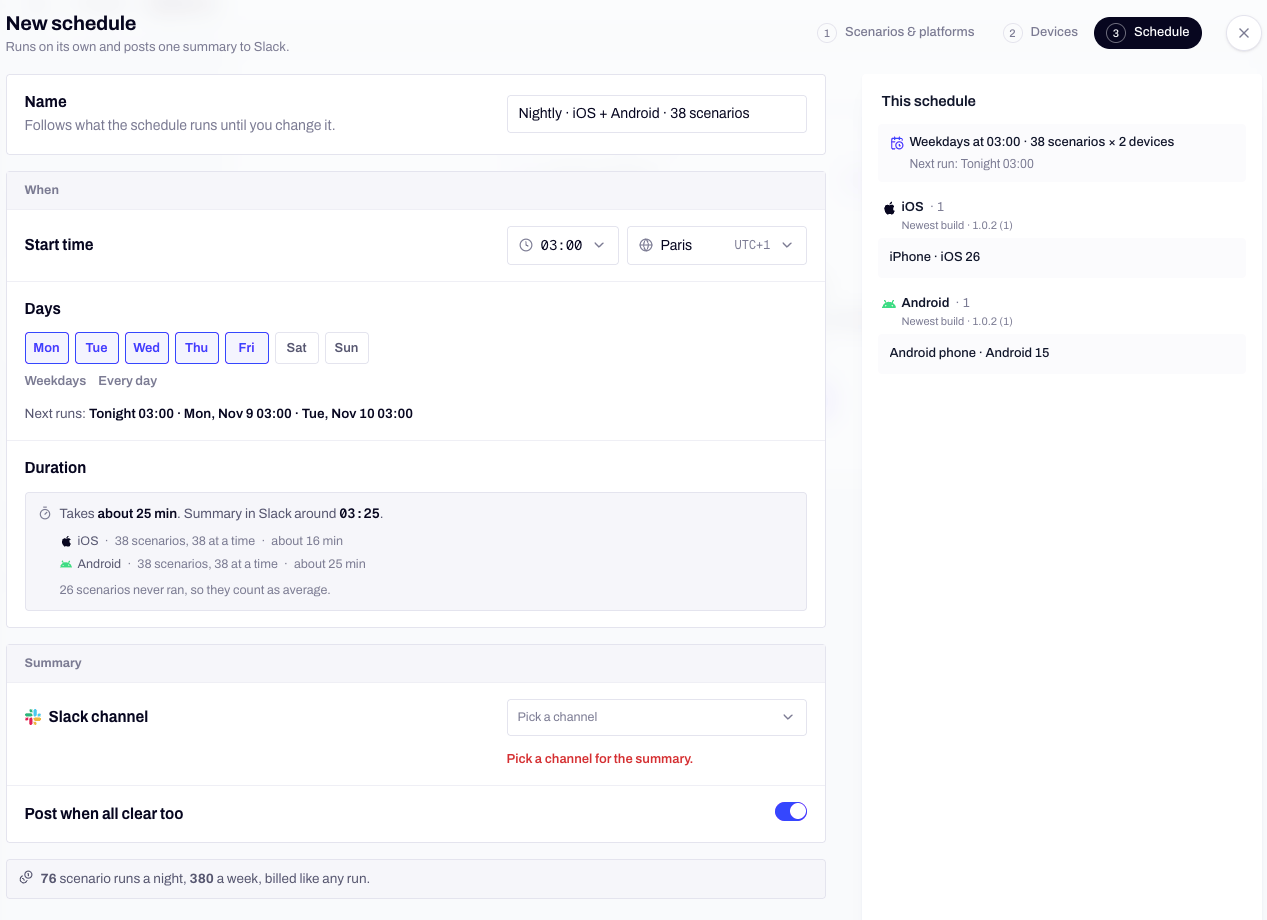
The Schedule step: when it runs, how long it takes, and where the summary goes.
Which build runs
For a web app, test the URL from the app’s settings, another URL such as staging or a preview, or a branch Mini builds before each run.
Before you save
The Schedule step shows what the schedule will cost and when it will finish:- Next runs: the next three starts, in the schedule’s timezone.
- Duration: how long the run takes, based on past runs of these scenarios, and around when the summary reaches Slack.
- The number of scenario runs a night and a week. Scheduled runs are billed like any run.
The Slack summary
After each run, Mini posts one message in the channel you picked: what passed, which issues are new since the schedule’s previous run, which are still broken, and a link to the run report. A night that didn’t run says why. Turn off Post when all clear too to hear only about problems.Read the history
Each schedule has a card on the Schedules page with its days and time, the channel it posts to, and its last runs, oldest first. Hover a run to see the build it tested (a new build or the same as last time) and its issues, marked New, Still broken or Works again. Runs started by a schedule also show on the Runs page, labeled with the schedule’s name. A run that didn’t start always has a reason on the card, for example:- The workspace is out of credits or reached its spend limit.
- No build installs, or the branch failed to build.
- The previous run was still going.
- No scenario matches the schedule.
- The site didn’t respond, or your test phones were busy.
From the CLI
Theminitest schedules commands manage the same schedules. They take the app with --app and address a schedule by name or ID.
--days takes weekdays (the default), weekends, every-day or a list like mon,wed,fri. What runs is --suite (the default), --tag with optional --exclude, or --scenario. The Slack channel ID is at the bottom of the channel’s About tab in Slack. Run minitest schedules create --help for every flag.
Next steps
Ways to start a run
Every other way to start a run, from the dashboard to CI.
Mini in Slack
Connect Slack and pick the channels Mini posts to.
Triage issues
What to do with the issues a night turned up.