
Secrets
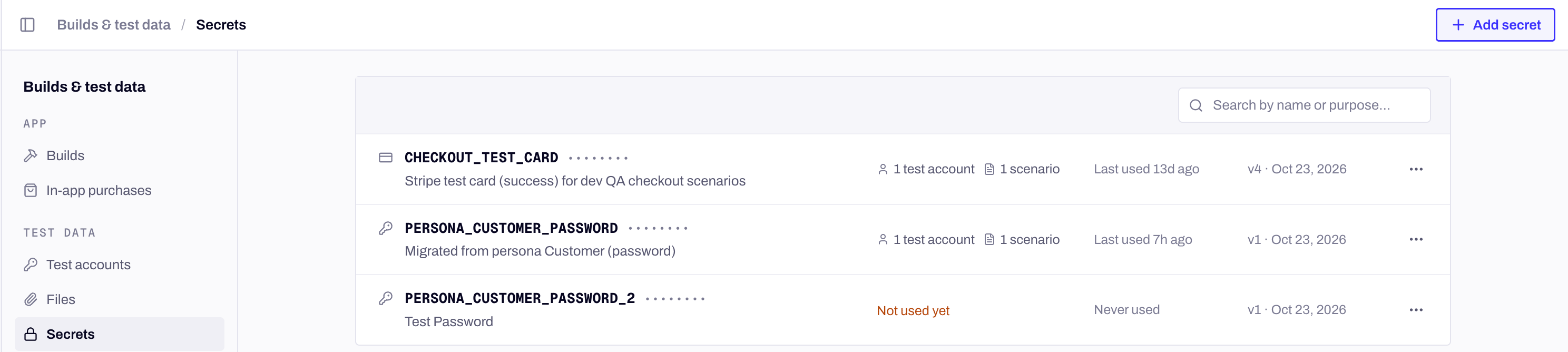
Secrets list what uses them and when they were last used.
Kinds of secret
A code that never changes is a Text secret. Use OTP seed only when your app generates codes from a seed, like an authenticator app does.
Create a secret
1
Open Secrets
In your app, go to Builds & test data → Secrets and click New secret.
2
Name it
The Name is how scenarios, skills and Mini refer to the secret. Upper case letters, digits and underscores, starting with a letter, up to 64 characters:
ADMIN_PASSWORD, STAGING_CARD.3
Pick the kind and paste the value
Choose the Kind, then paste the Value. It’s stored encrypted.
4
Say what it is for
Fill What it is for, like
Back-office admin sign-in. Mini reads this note, never the value, so it knows when to use the secret. Click Save secret.Reference a secret
In a scenario’s description, its acceptance criteria or a skill’s instructions, write{{secret:NAME}}. Typing {{ opens Insert a secret with the app’s secrets, and you can create a new one from the same list. For a card, reference one field: {{secret:STAGING_CARD.number}}, .expiry, .cvc, .holder_name or .postal_code.
The editor checks your text as you write:
- A value that should be a secret. If you paste a saved secret’s value, or something that looks like a password or a key, the editor offers Use NAME or Move to Secrets.
- A name with no secret. A reference to a secret that doesn’t exist offers Create NAME. Until it exists, a run stops that scenario as blocked.
- The old syntax.
$NAMEstill works in scenarios, and the editor suggests{{secret:NAME}}instead.
Use a secret on a test account
A test account’s Password, OTP and Test card fields can point to a secret instead of holding the value. Pick the secret in the field, or New secret… to create it there. The Password field takes a Password secret, OTP an OTP seed or a Text secret with a fixed code, and Test card a Card secret. The rest of the account setup is on Test accounts and sign-in.When Mini asks for a secret
Some values only you have: your real staging account, a card, a backend token. When Mini needs one while it writes or runs a scenario, it creates the secret without a value, says what it’s for and which scenario needs it. The secret shows Waiting for a value and a Set value button. A scenario that needs a secret without a value is held in the run, under Waiting for a secret, with a link to the secret. Set the value, then rerun the scenario.Manage a secret
Click a secret to open it.- Used by lists the test accounts, scenarios and skills that reference it.
- Activity records every change: created, value replaced, renamed, used in a run, revealed or copied, and any leak of its value that was blocked.
- Replace value keeps the name and every reference, and stores a new version.
- Rename… rewrites the reference everywhere it’s used: scenarios, criteria, skills and test accounts. Runs already started keep the old name.
- Delete works once nothing uses the secret. Remove its references first.
Secrets from the CLI
--generate makes a random one, for an account Mini signs up with itself. --empty creates a secret that waits for your value:
secret set creates or replaces a value and reads it from stdin only, so it never lands in your shell history:
secret rename OLD NEW rewrites every reference, secret unset NAME deletes a secret nothing uses, and test-profile update <id> --password-secret NAME links a secret to a test account. See the CLI reference for every flag.
Test files
Some journeys need a file on the device: an ID photo for an identity check, a PDF statement to upload, an avatar for the profile. Upload these once in Builds & test data → Files, then attach them to the scenarios that use them.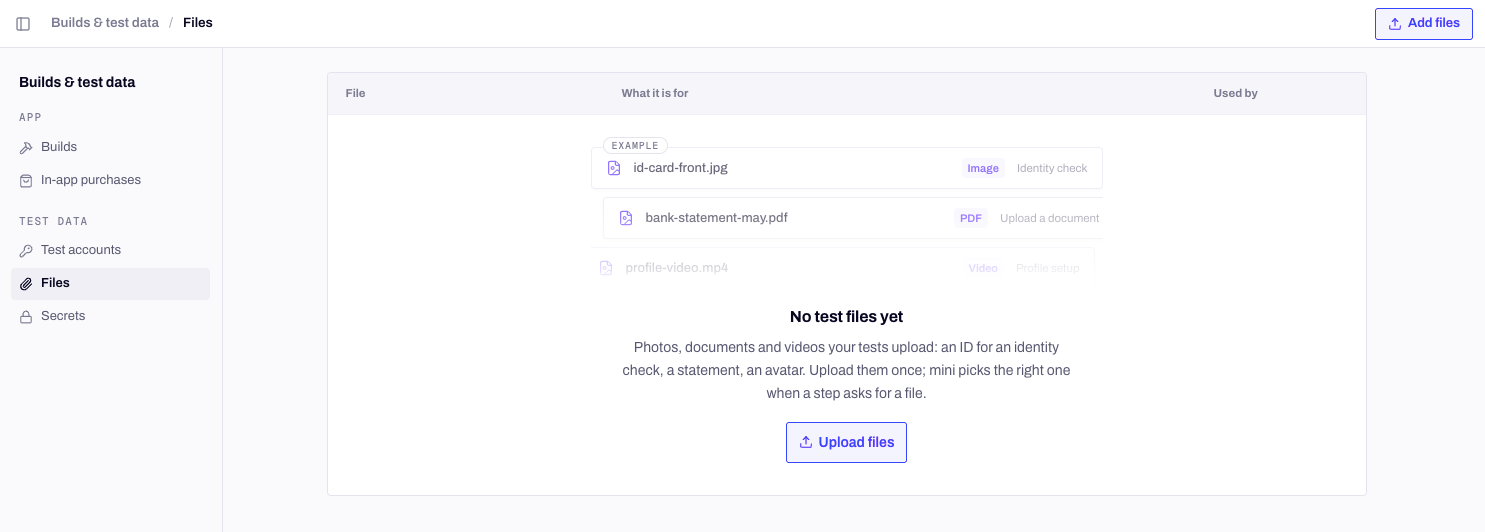
Builds & test data → Files, before the first upload.
Upload files
Click Add files, or drop files on the page. Before the upload, check each file’s details:
Each file can be up to 25 MB. Minitap sorts files into images, documents, videos, audio and other from their type.
Attach files to a scenario
Open the scenario, go to its Setup tab and click + Add file under Files. Pick files from the list, or Upload new file from there. Mini places attached files on the device before the run starts, and a file no scenario uses never reaches a device. How Mini picks a file up during the journey is on What a scenario is. For web apps, Camera in the same tab loops an image or a video into the browser’s camera, for journeys that scan a QR code or a document. A camera video can be up to 50 MB.Manage files
The Used by column shows how many scenarios use each file. From a file’s menu, Edit changes its name or note, Download gets the file back, and Delete removes it. A file still attached to a scenario can’t be deleted: detach it everywhere first.Files from the CLI
set-files replaces the scenario’s whole set of files: pass every file it should keep. List the files first, since someone on your team may already have uploaded the one you need. For the camera of a web scenario, use scenario update <scenario_id> --camera-media <path-or-file-id>.
Next steps
Test accounts and sign-in
The accounts Mini signs in with, and how their fields point to secrets.
Skills
Procedures that set up test state, with the tokens they need.
What a scenario is
Criteria, tags, files and accounts on one scenario.
CLI commands
Every
secret, test-file and binding command.