
Scenario verdicts
A scenario that ran to the end gets one of four verdicts:
A criterion Mini couldn’t check never turns a verdict into a warning or a failure. When the other criteria pass, the scenario stays Passed with a grey “N not tested” badge next to it.
On the Tests page, each scenario shows its latest result, and the status tabs (Failing, Passing, Untested, Escalated, Needs you) sort the suite by it.
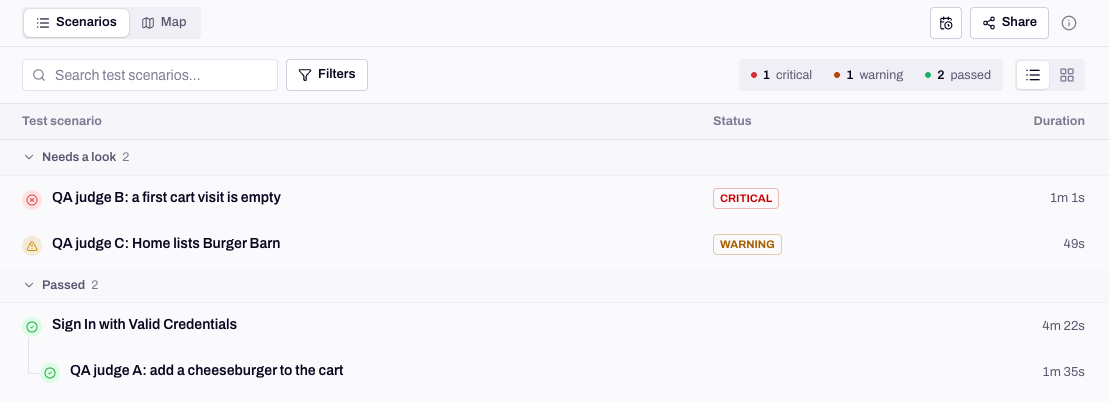
A run groups its scenarios by verdict.
When a scenario ends without a verdict
Some scenarios stop before Mini can grade them. None of these is a bug in your app.Escalated
Mini escalates when it can’t go on without a person: a question only your team can answer, or a fix to the scenario it wants you to approve. The scenario pauses, and its status says who has the next move:
If Mini had already graded some criteria before it paused, the row shows their Critical or Warning next to the escalation. Scenarios that depend on it are skipped, with a note that it is waiting for a review. The scenario view shows when an unanswered question pauses; after that, the criteria it blocks stay untested.
Outdated
When a scenario changes after a run, that run’s results no longer match it. The scenario view marks it Outdated, and its card in the run reads Needs a refresh. The old results stay visible, and Rerun next to Edit tests the current version.Criterion labels
Inside a scenario, each acceptance criterion carries its own label:
While the run is live you also see Testing, Evaluating and Resolving.
Not tested
Not tested means Mini ran the scenario but couldn’t grade any criterion. It is never reported as a bug in your app. Read Mini’s note on the criteria first: it says what stopped it. The common causes:- Sign-in failed. Mini couldn’t get past sign-in, so nothing after it was testable. Attach a working test account to the scenario.
- The criterion asks for something Mini can’t do, like reading a database or hearing the device’s sound. Check what Mini can and can’t do and rewrite the criterion around what the app shows.
- The criteria don’t fit the app. Usually a scenario copied from another app, or a criterion about a feature this build doesn’t have. Edit the scenario.
- A blocker early in the flow made every later criterion unreachable. The first criterion that didn’t pass is the one to read.
- Mini needed something from you, like test data or an account. It asks on the run page. Answer it and the scenario runs again.
Severity
Each failure gets a severity: Critical, Warning or Pass. Mini rates it from what your app does and what matters in it. A failure Mini couldn’t verify is never rated Pass. The worst severity in a scenario sets its verdict: one Critical makes it Failed, a Warning with no Critical makes it Warning, and failures rated Pass leave it Passed. Mini explains every rating. Look for Severity assessment on the criterion in the scenario view, Why critical or Why warning on the issue, and Why this severity in the exported report.In an exported run report, Failed counts both Critical and Warning scenarios, and Skipped groups the ones that were skipped, not completed or not tested. See Export a run report.
Override the severity
You know your product better than any inference. When Mini’s rating is wrong, change it on the issue:1
Open the issue
In Issues, click the issue to open it.
2
Click its severity
The severity sits first in the row of actions under the title. Hover it for Click to override the inferred severity.
3
Pick the new rating
Under Set severity, choose Critical or Warning. Clear override puts Mini’s rating back.
- A small-looking criterion that protects revenue, like
Order total matches sum of items: raise it to Critical. - A serious-looking criterion that is cosmetic in your app, like
A small "Beta" badge is shown: lower it to Warning.
Next steps
Read a run report
The scenario view, the fix prompt and the export.
Triage issues
Fix, file a ticket, set aside or mark Not a bug.
How Mini tests
How Mini judges each criterion before it rates it.
Troubleshooting runs
Long runs, the wrong build, hidden evidence.