
Your staging environment is clean, your unit tests pass, and your build deploys without error. Then 12% of your users hit a crash in conditions you've never tested. Compatibility testing exists to close that gap: it checks whether your product works across different operating systems, browsers, screen sizes, and network conditions that produce different runtime behavior. This guide covers how to define your test matrix based on real usage data, structure your compatibility process to catch failures before production, and rank coverage by risk instead of trying to test every possible combination.
TLDR:
- Compatibility testing checks if your app works across different operating systems, browsers, and network conditions, beyond your staging setup.
- Production failures show up as 1-star reviews, uninstalls, and App Store ranking drops that take weeks to recover from.
- Six test categories cover most cases: hardware, software, browser, network, forward/backward compatibility, and platform-specific behavior.
- Build your test matrix from analytics data, not industry averages, and focus on high-traffic paths like checkout and login.
- Minitap reads your app from source, maps all test scenarios automatically, and runs the full regression suite on cloud iOS simulators and Android emulators with zero maintenance overhead and no test scripts to write.
What Is Compatibility Testing?
Compatibility testing checks whether software behaves correctly across the environments users actually run it in. Different operating systems, browsers, screen sizes, and network conditions all produce different runtime behavior, and a build that passes every unit test can still face mobile application testing challenges once it reaches users.
The core question is simple: does this product work for the people using it, in the environments they're running?
Why Compatibility Testing Matters in 2026
A release that worked perfectly in your staging environment can fail for a meaningful portion of your actual users. Different browser engines, screen densities, and system configurations all create conditions your local setup never replicates. When those gaps surface in production, the damage is real: 1-star reviews citing crashes, uninstalls, and App Store ranking drops that take weeks to recover from.
The stakes have risen because the target has grown. The Android ecosystem spans thousands of distinct configurations across active users, a scale that device diversity research has documented consistently. Fragmentation remains the primary challenge, forcing teams to rank coverage by real usage data instead of attempting exhaustive validation.
Compatibility testing is how teams get ahead of that.
Types of Compatibility Testing
Six categories cover most of what teams actually test in practice, and knowing which ones apply to your product narrows the scope considerably.
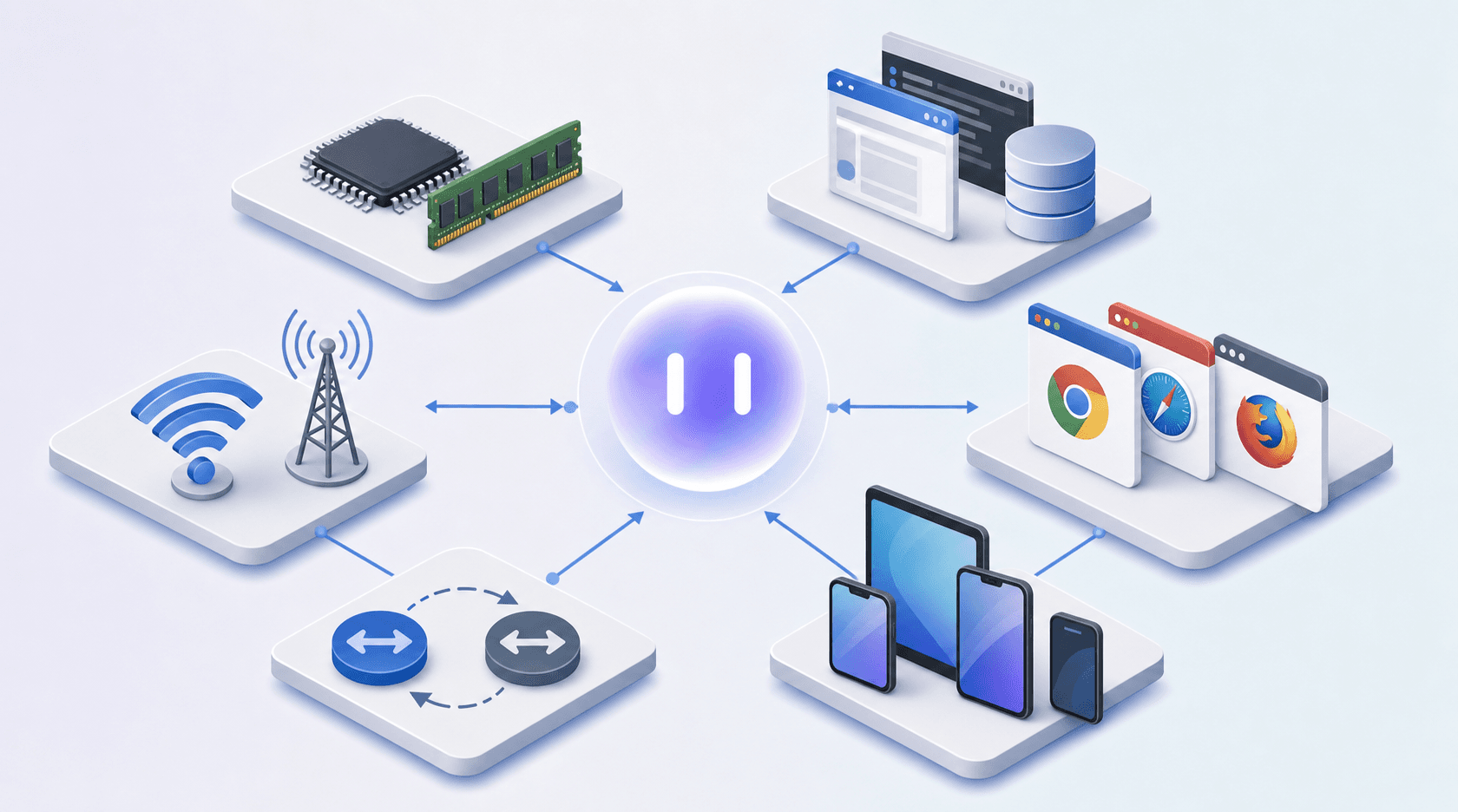
- Hardware compatibility: whether the app runs correctly across different system configurations
- Software compatibility: behavior across operating systems, database engines, and third-party integrations, including APIs that changed between releases
- Browser compatibility: display and functional differences across Chrome, Safari, Firefox, and Edge, including version-specific quirks that affect layout or JavaScript execution
- Network compatibility: how the app behaves under varying connection speeds, packet loss, and switching between WiFi and cellular
- Forward and backward compatibility: whether new releases break existing users, and whether older clients can still talk to newer backend versions
- Platform compatibility: screen sizes, input methods, and platform-specific behaviors
Forward vs Backward Compatibility Testing
Forward compatibility asks whether today's software works with tomorrow's environment. Backward compatibility asks whether today's environment handles yesterday's software. Both directions matter, and teams that only test one tend to get burned by the other.
Forward compatibility testing covers scenarios like a user running your app in a newer environment you haven't officially shipped against yet. Backward compatibility testing covers the reverse: a user in an older environment trying to run your latest build.
A few failure patterns surface repeatedly across both directions:
- Forward failures often appear in permission models or API behavior that changed in a newer OS before your code accounted for it.
- Backward failures tend to cluster around UI components or system APIs that your newer build calls but older environments never shipped.
- Both directions produce silent failures more often than hard crashes, which makes them harder to catch without targeted test runs.
The practical split most teams land on: run backward compatibility tests within your declared support window, and run forward tests against upcoming releases before general availability.
The Compatibility Testing Process
Most teams treat compatibility testing as a checklist run at the end of a release cycle. That's where the process breaks down.
The sequence that actually works starts before a single test runs.
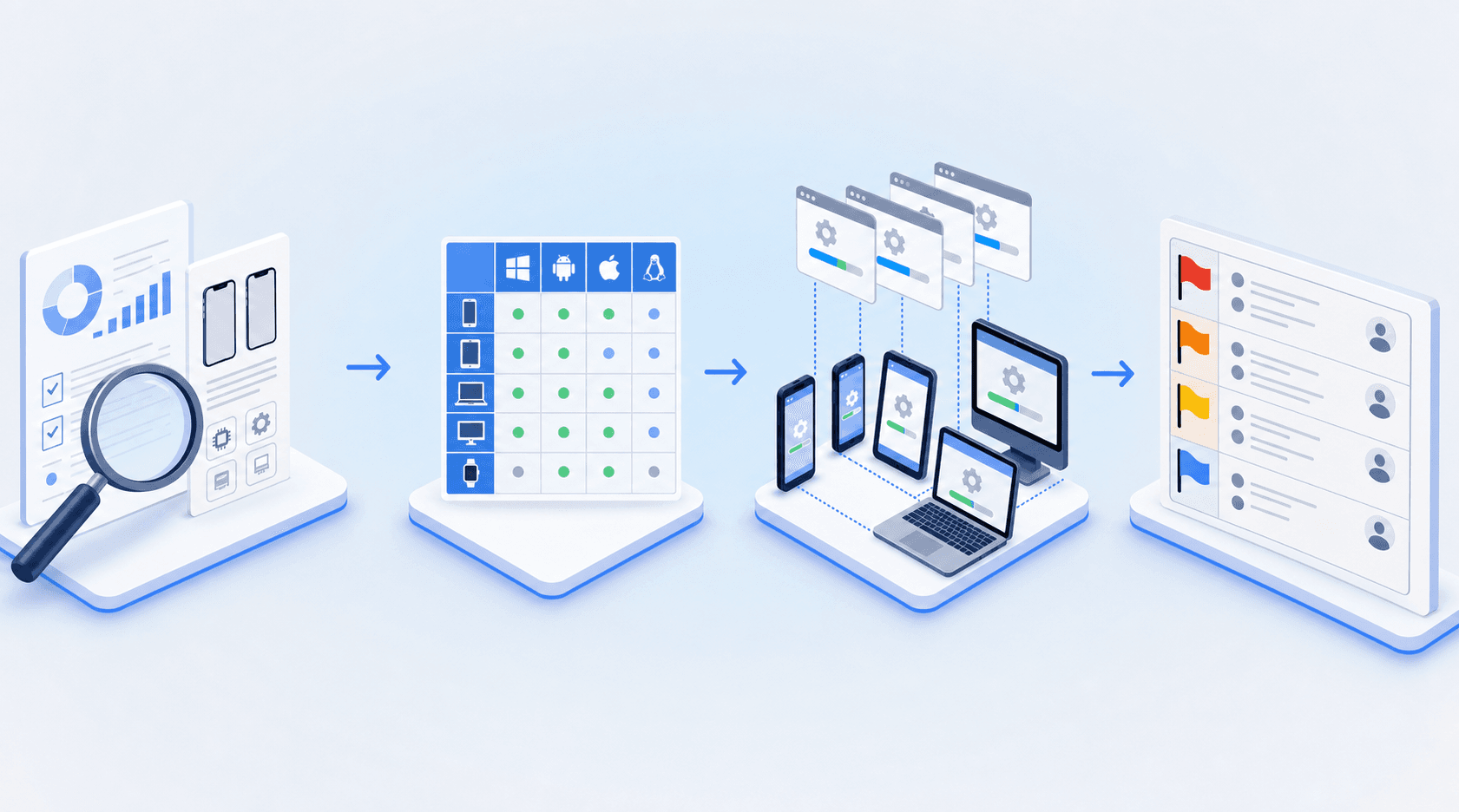
Define scope before writing tests
Pick the environments that matter based on real usage data, not assumptions. Pull your analytics for the operating systems and browsers your users actually run. Focus on the environments that drive the majority of your traffic.
Build the environment matrix
Translate that data into a grid:
| Dimension | What to include |
|---|---|
| Operating systems | iOS and Android |
| Browsers | Chrome, Safari, Firefox at current and prior major versions |
| Screen sizes | Compact, standard, large, tablet |
| Network conditions | WiFi, LTE, 3G, degraded/throttled |
Run tests against the matrix
Start with smoke coverage across every environment, then run regression on the critical paths. A checkout flow that breaks mid-cycle costs you the same as one that breaks in production.
Triage and fix by priority
Not every failure warrants a release block. Flag by impact: does this affect your top-traffic environment? Does it break a revenue path? If yes, it blocks. If it affects 2% of sessions in an environment you're phasing out, it goes to the backlog.
Common Compatibility Defects Teams Encounter
Defect patterns cluster by symptom regardless of what causes them underneath.
- Display issues: misaligned elements, font substitution, and text overflow from CSS interpreted differently across browsers or platforms.
- Touch and interaction: tap targets that register correctly in one configuration but miss in another, or gesture conflicts that only appear under specific conditions.
- Performance: animations that run smoothly in some configurations but drop frames or freeze in others.
- Auth and session: login flows that complete on one browser but silently fail on another due to cookie handling or redirect behavior differences.
- Network-dependent failures: API calls that succeed on WiFi but time out or return errors under throttled mobile connections.
Challenges in Compatibility Testing
Three problems show up repeatedly across teams shipping on mobile and web.
- Fragmentation is the first: the Android ecosystem spans thousands of distinct configurations, each with different screen densities and platform behaviors. A test that passes in a clean environment may fail when the app has been running for several hours with low memory and competing background processes.
- Maintenance cost compounds quickly: every UI change can break existing test selectors, and the upkeep scales faster than the coverage it produces.
- Flaky results erode trust: when tests fail inconsistently, engineers start ignoring failures, which defeats the purpose of running them at all.
Building a Compatibility Testing Matrix
A compatibility matrix maps which environments you actually need to test against. Start with your analytics, not industry averages.
Global browser share gives you a starting point: Chrome sits at roughly 65%, Safari at 19%, Edge at 5%, and Firefox at 3% (Statcounter, June 2026). Your own analytics will shift those numbers considerably depending on your audience. A B2B product skews toward Edge and Windows Chrome. A consumer app targeting younger users on mobile may see Safari dominate.
Build your matrix across three axes. Building a data-driven compatibility matrix avoids wasting effort on environments your users never actually run.
- Browser and version: cover the current release plus one major version back for each browser in your traffic data.
- Operating system: Windows, macOS, iOS, and Android each surface different display and API behavior, so treat them as separate test targets.
- Screen size and input method: changes in layout behavior that desktop browsers alone will not catch.
Once the matrix is defined, rank by risk using scriptless automation. High-traffic paths like checkout, login, and onboarding get tested across your target environments. Lower-traffic pages get spot-checked. This keeps coverage accurate without requiring a combinatorial explosion of test runs every release.
Manual vs Automated Compatibility Testing
Script-based automation moves execution cost into maintenance: every smoke check, regression run, and CI job requires selector authorship upfront and selector repair every time the UI changes. Manual testing burns senior IC time on runs that produce inconsistent results and cannot scale across the full combination of platforms, browsers, and network conditions that real users run. Either way, the engineering team retains ownership of the testing loop, and that ownership compounds into maintenance debt that grows with every release. Minitap's autonomous agent is the only approach where execution, maintenance, and root cause analysis stay inside the agent with no loop handoff back to the team.
The real constraint is maintenance. Every UI change can break selectors. Every new environment added to the matrix means more test authorship. Teams that own script-based suites spend as much time keeping tests current as they do acting on what the tests find. Minitap removes that constraint: the agent reads your app from source, maps all test scenarios automatically, and keeps them up to date without your team writing or maintaining a single script.
Compatibility Testing for Mobile vs Web
Mobile and web compatibility testing share the same goal but face structurally different problems.
On web, the primary variable is the browser engine. Chrome, Safari, Firefox, and Edge each interpret CSS and JavaScript differently, but the runtime environment is largely standardized. Viewport responsiveness and progressive enhancement are the main test targets, and Minitap's autonomous agent covers them from the same specification used for mobile, with no separate web test suite required.
Mobile is messier. Platform behaviors differ between iOS and Android, affecting permission dialogs, font display, and system behavior. Camera APIs, sensor availability, and processor architecture all affect how your app runs. Network conditions swing harder on mobile, and app store distribution adds a constraint that web deployments skip entirely.
The practical consequence is that mobile compatibility testing requires testing under runtime conditions that matter: memory pressure from background processes, thermal throttling under continuous load, and sensor-level interactions. That gap is why mobile compatibility testing requires different tooling beyond additional test cases.
How Minitap Handles Compatibility Testing for Mobile and Web Teams
Minitap is a fully autonomous QA agent for mobile teams. The agent understands your app from source, maps all test scenarios automatically, and keeps them up to date with zero maintenance required from your team.
The agent tests your running app directly to check whether user jobs complete correctly. When a compatibility failure surfaces, you get a Slack alert with severity, a video recording with timestamp, and a fix prompt ready to paste into your development environment using AI mobile app testing tools. A single flow specification covers both iOS and Android simultaneously, no parallel suite required.
Final Thoughts on Compatibility Testing for Mobile and Web
Compatibility failures surface when the environments your users run differ from the ones you tested against, and closing that gap is what keeps crashes, broken layouts, and 1-star reviews from reaching production. The practical challenge is deciding which operating systems and browsers warrant test coverage based on your actual traffic, then keeping that matrix current as the ecosystem changes. Minitap owns that entirely: the agent reads your app from source, maps your compatibility surface across iOS and Android, and runs it on cloud simulators and emulators with no test scripts to write and no matrix to maintain. Connect your codebase and the coverage runs itself.
FAQ
Can I run compatibility testing without maintaining test scripts?
Yes. Minitap reads your running app directly and tests whether user jobs complete correctly, without requiring your team to write or maintain test scripts. You get failure alerts, video recordings, and fix prompts without owning the test suite.
What's the difference between forward and backward compatibility testing?
Forward compatibility tests whether your current software works with future environments. Backward compatibility tests whether your latest build still runs correctly in older environments your users haven't updated from. Both directions matter because forward failures surface in permission models or API changes in newer releases, while backward failures cluster around UI components or system APIs that older environments never shipped.
How do I decide which operating systems and browsers to include in my test matrix?
Pull your analytics for the operating systems and browsers your actual users run. Focus on the platforms that drive the majority of your traffic, and focus coverage on high-traffic paths like checkout and login. Minitap makes the ongoing work disappear: the agent reads your app from source, maps the full test surface automatically, and runs it across iOS and Android without your team building or maintaining the matrix manually.
Mobile compatibility testing vs web compatibility testing?
Mobile compatibility testing requires validating platform-specific behaviors, camera APIs, sensor interactions, and memory pressure scenarios that only surface under real runtime conditions. Web compatibility testing focuses primarily on browser engine differences across Chrome, Safari, Firefox, and Edge. Minitap covers both: a single flow specification runs across iOS and Android simultaneously, and web testing runs through the same agent, so teams shipping both mobile and web apps get full compatibility coverage from one platform with no separate test suites to maintain.
Why do compatibility tests pass in staging but fail in production?
Different browser engines, screen densities, and system configurations create runtime conditions your local setup never replicates. A build that works in staging can fail for users in older environments, running with less memory headroom, or under network conditions that throttle API calls differently than your WiFi test environment. Minitap closes that gap by running your app on cloud iOS simulators and Android emulators under real runtime conditions, catching compatibility failures before they reach production, not after users report them.